|
| Disable Windows Defender
Version: 3.5
|
|
|
|
|
|
|
|
| |
|
|
| |
|

|
Disable Windows Defender is the free tool to easily & effectively enable/disable Windows Defender without restarting system |
|
|
Often we need to disable Windows Defender to prevent it from deleting known file due to false positive error.
Some times it may slow down your computer or just interrupt your work or block your downloads.
In such cases, you can easily disable it and enable it later with a click of button.
We can also disable it (Realtime Monitoring) using Defender Settings panel but it gets enabled automatically after some time.
This tool makes sure it is disabled 100%. It also disables all type of protections of Defender.
- Disable Realtime Monitoring
- Disable Behavior Monitoring
- DisableI OAV Protection
- Disable Script Scanning
- Disable Block At First Seen
- Disable Archive Scanning
- Disable Email Scanning
- Disable Removable Drive Scanning
- DisableScanning Mapped Network Drives
- DisableScanning Network Files
- Disable MAPS Reporting (Cloud Protection)
- Disable Submit Samples
With just click of button, all the above protections of Defender will be disabled or enabled back.
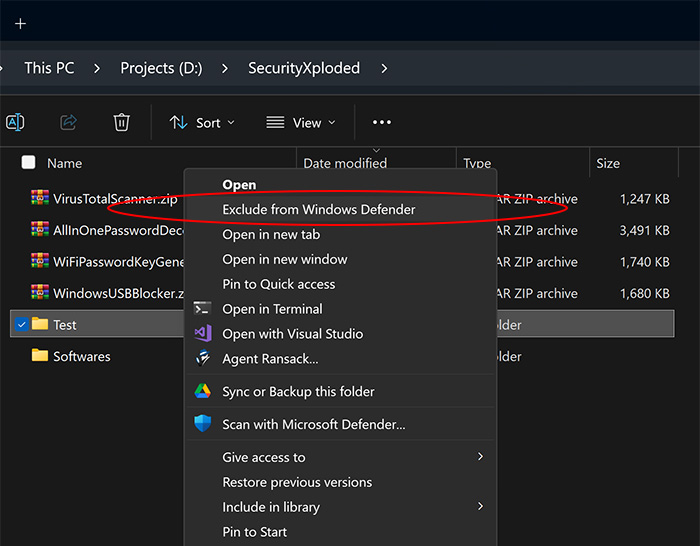
It also helps you to exclude specific file or folder from scanning by Windows Defender by just right clicking on it (see Screenshot 3)
This is very useful if you don't want to fully disable Defender but only want to exclude particular folder/file from being deleted by Defender.
"Disable Windows Defender" works on both 32-bit & 64-bit platforms from Windows 10 to Windows 11
|
| |
- Free Tool to disable/enable Windows Defender
- 100% effectively & successfully disable in one click
- Disable all type of protections of Defender
- Auto-update Defender status on focus or activating application
- Refresh button to manually update the status any time
- Exclude file or folder from Defender by just right clicking on it
- Simple tool with cool GUI interface
- No need to log off or restart the system
- Works on both 32-bit & 64-bit systems from Windows 10 to Windows 11
|
| |
|
| Disable Windows Defender includes Installer so that you can install it locally on your system for regular usage. This installer has intuitive wizard which guides you through series of steps in completion of installation. |
|
| At any point of time, you can uninstall the product using the
Uninstaller located at following location (by default) |
|
[Windows 32 bit]
C:\Program Files\SecurityXploded\DisableWindowsDefender
[Windows 64 bit]
C:\Program Files (x86)\SecurityXploded\DisableWindowsDefender |
| |
|
| 'Disable Windows Defender' is very easy to use. Below are details on how to use it enable/disable Defender and how to exclude folder from Defender.
|
|
- After installation, run 'Disable Windows Defender' on your system as Administrator
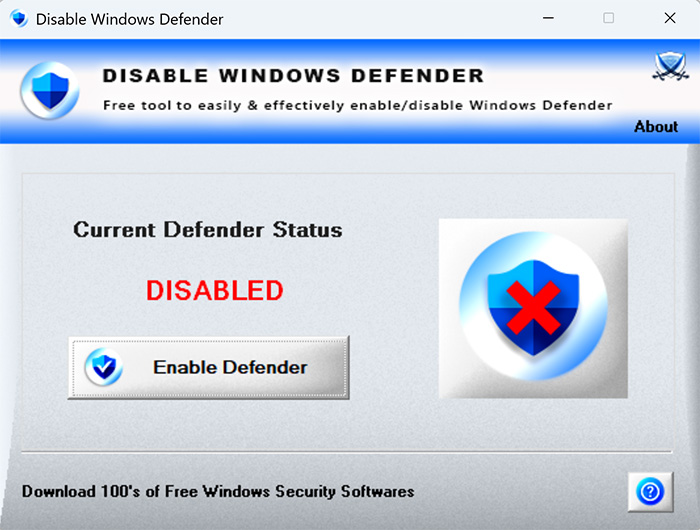
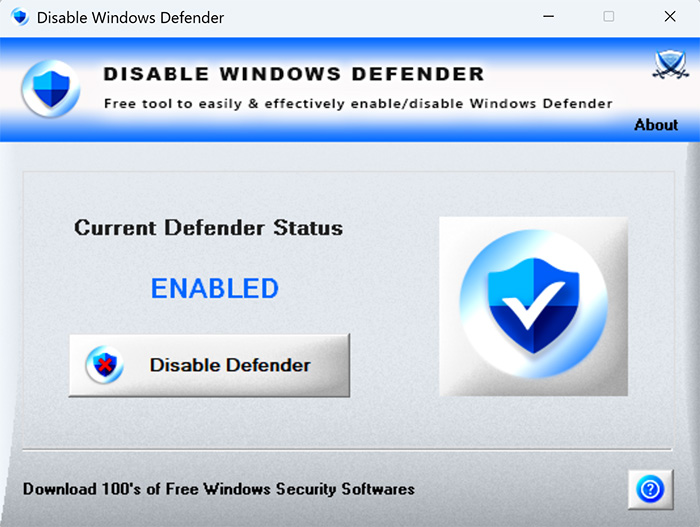
- It will show the current status of Defender (Enabled/Disabled)
- Now click on Enable/Disable Defender button to Enable/Disable it respectively as shown in Screenshot 1/2 below.
|
|
- Right click on any file or folder
- Next click on "Exclude from Windows Defender" (as shown in Screenshot 3)
- Software will add it to exclusion list of Defender and show success/failure message
- Later, you can remove all such exclusions from Defender's "Virus & Threat Settings" panel
|
|
- Run the "RemoveDefenderContextMenu.bat" (present in downloaded zip file)
- Upon success, it will remove right click context menu (shown in screenshot 3 below)
- To enable it again, just run this software again
|
| |
|
| Here are the screenshots of 'Disable Windows Defender' |
|
 |
|
 |
|
|
| |
|
| Minor update to automatically check & update Defender status whenever app is activated. Also optimized code for faster run and fixed button icon |
| |
| This update includes refresh button to update Defender status manually & improved GUI design for easier operation |
| |
| Major release with faster execution of enable/disable of Defender, showing status on activation, improved context menu check & execution, faster launch of application etc |
| |
| First public release of Disable Windows Defender |
|
| |
| |
|
|
|
|
|
|
|
|
|
|
|